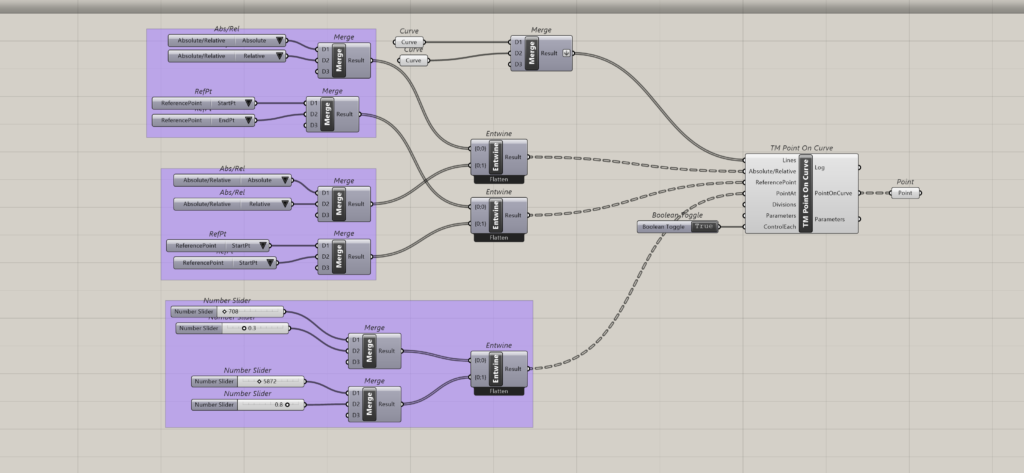
This following grasshopper snippets explain how to use component using the various input types available.
Registered users can download the grasshopper file from here:
‘Control Each’ as False
Using Absolute Distances
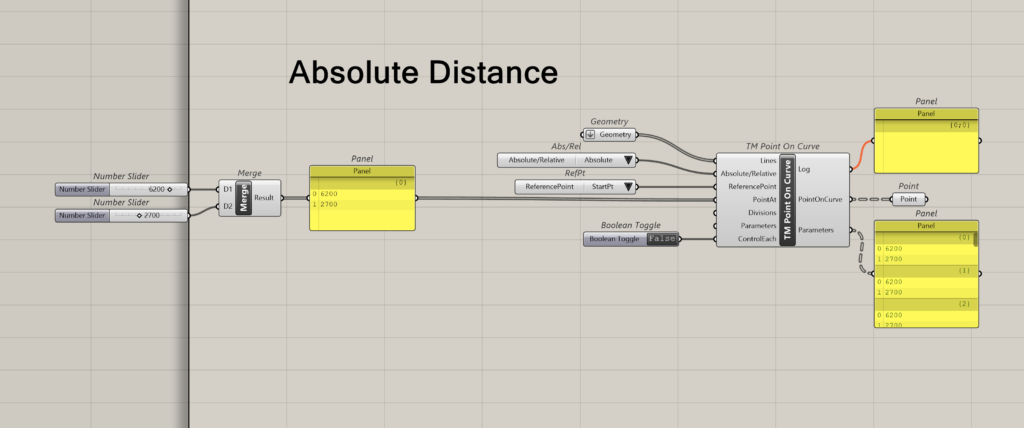
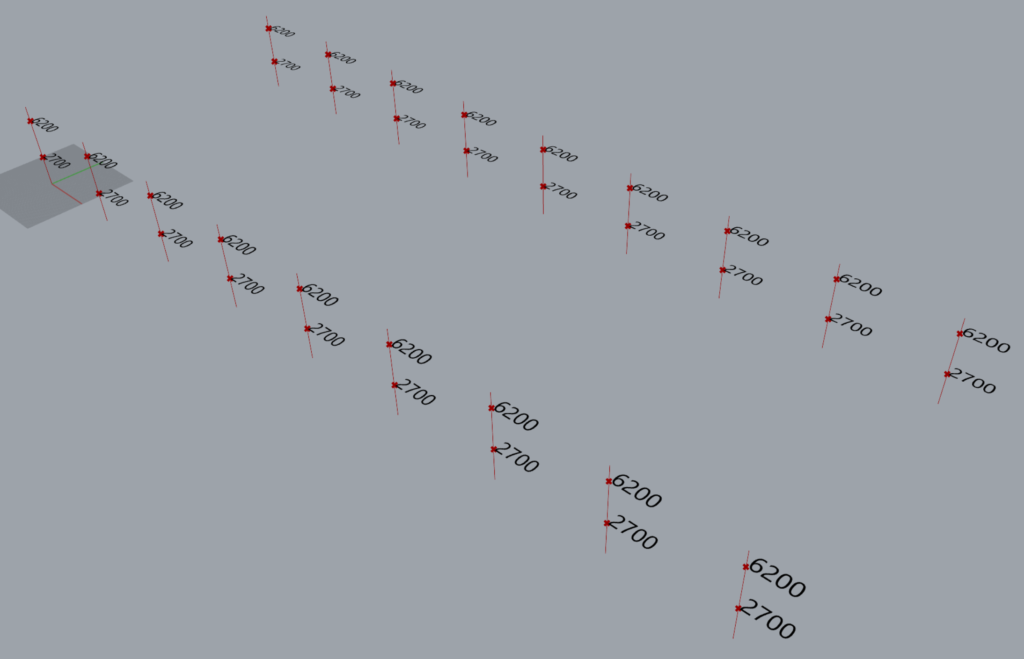
Using ‘Relative’ Distances
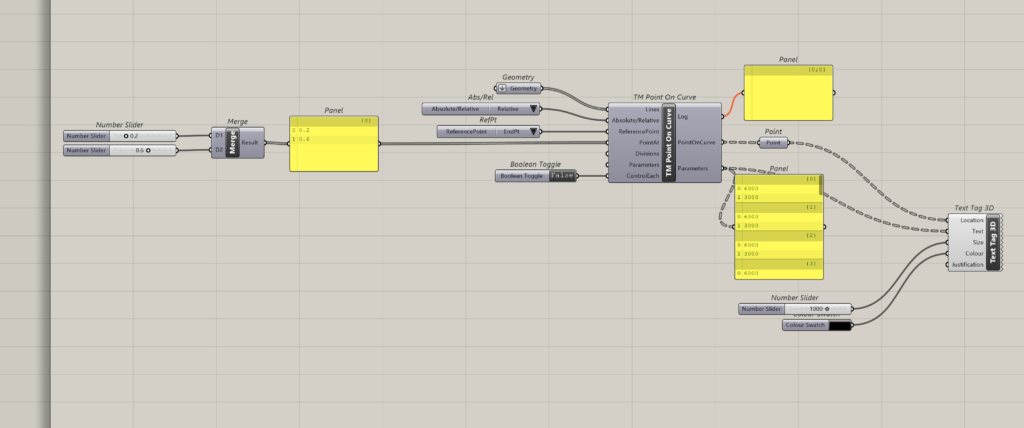
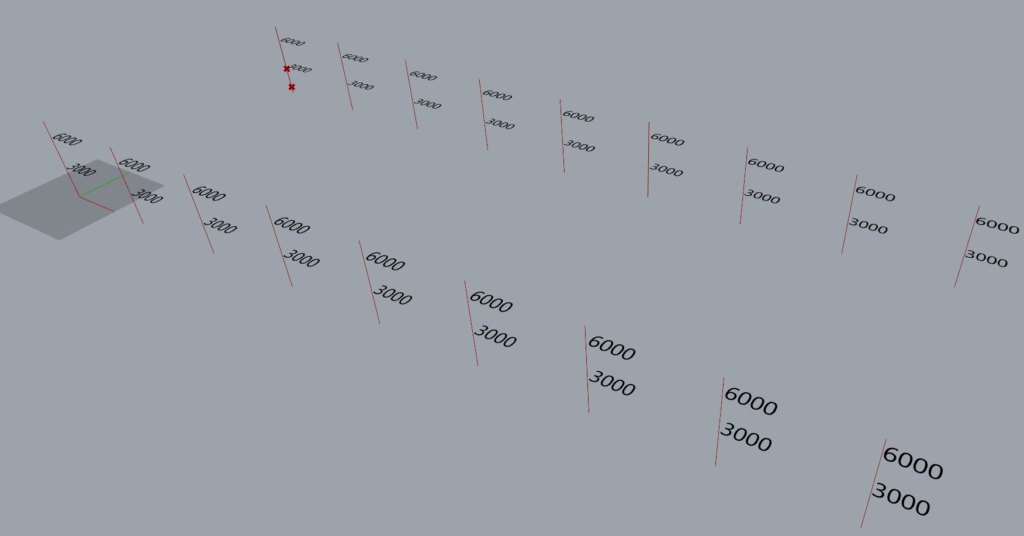
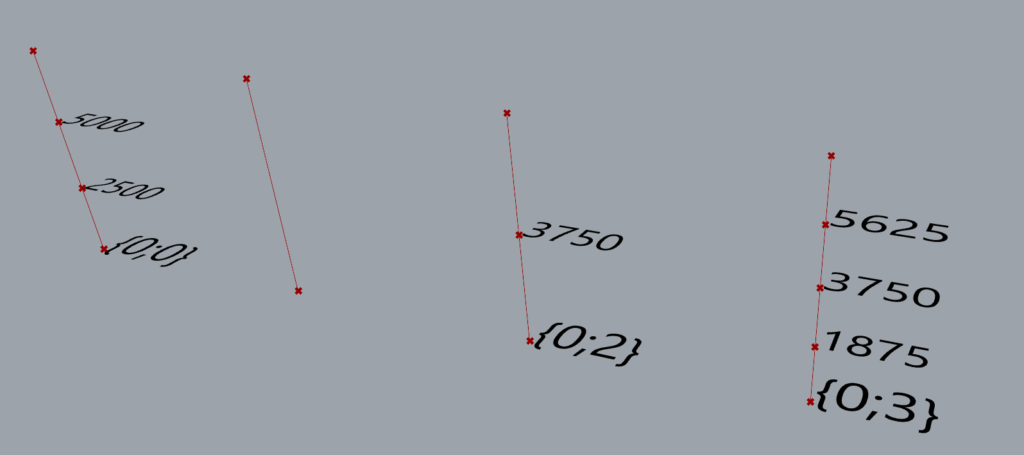
Using ‘Divisions’
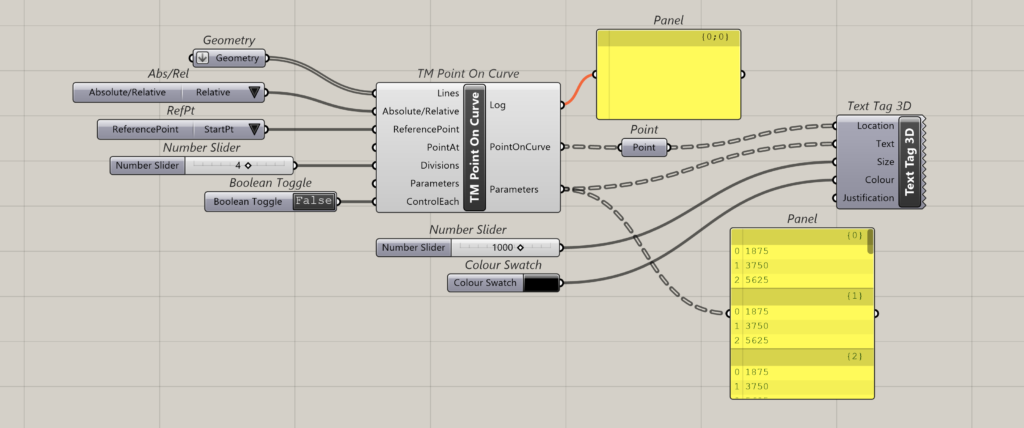
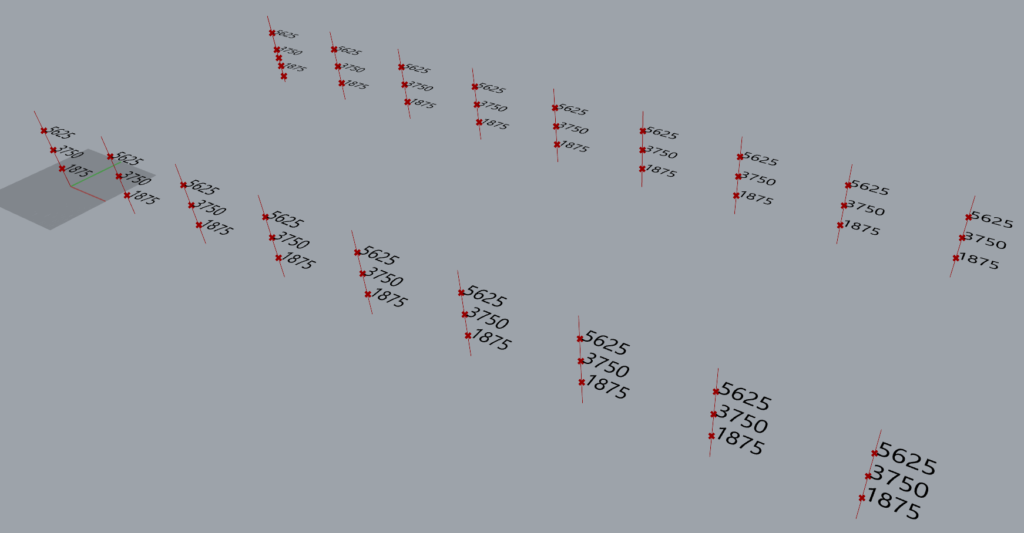
The points have been created using the following logic.
Divisions-4; Distance interval : 7500/4 = 1875 mm.
- Point 1 : Z = 1875 mm
- Point 2 : Z =3750 mm
- Point 3 : Z =5625 mm
Using ‘Parameters’
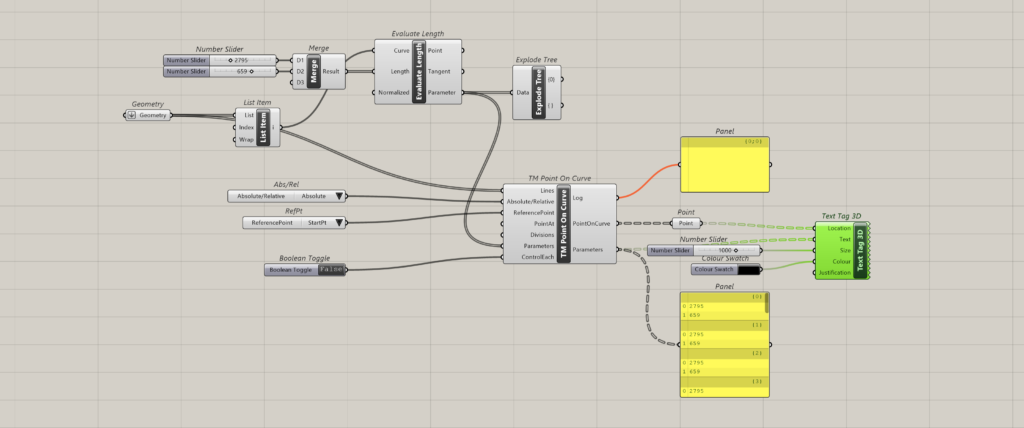
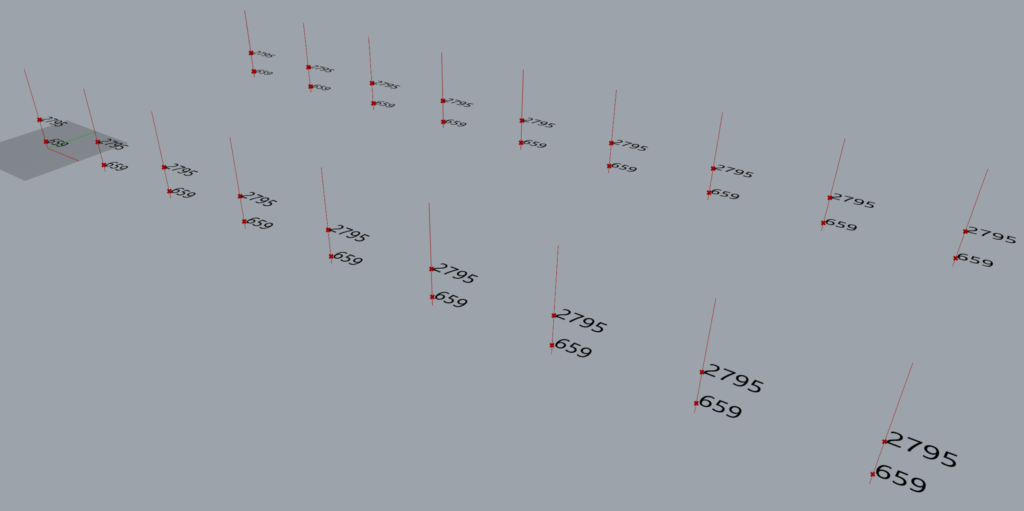
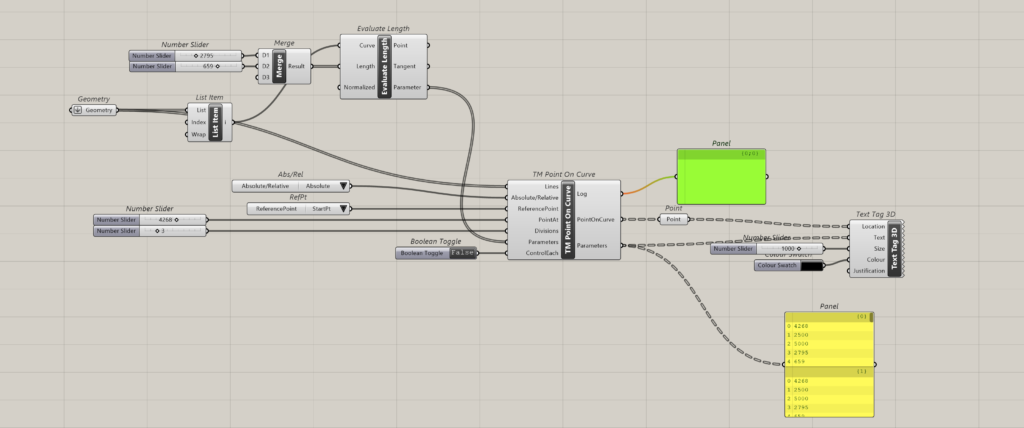
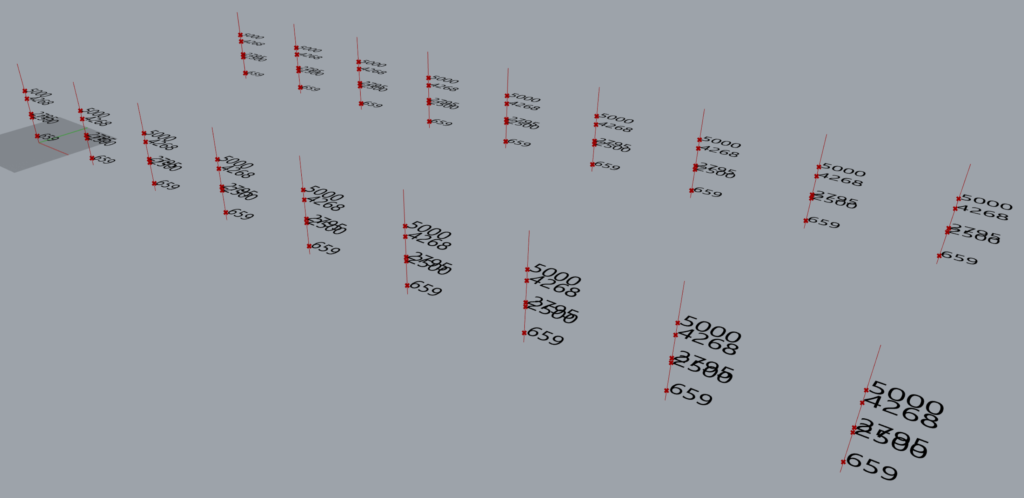
Using all input types together
All input types can be used together as well.
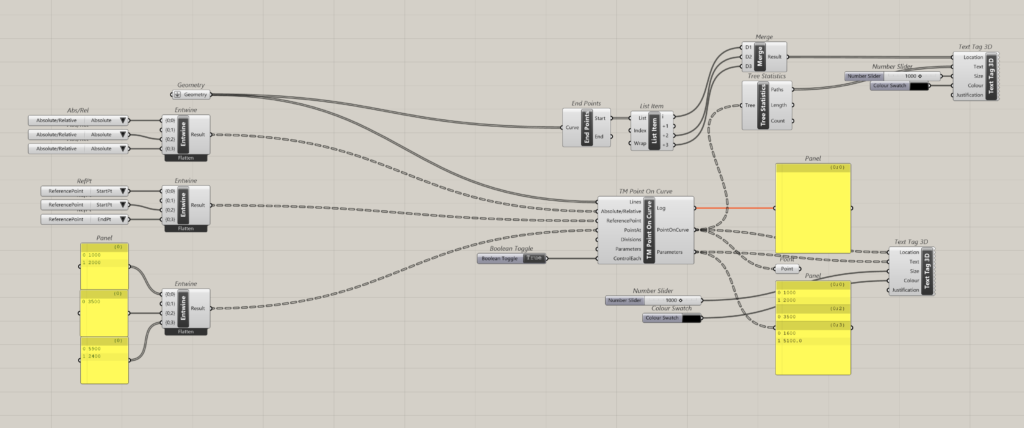
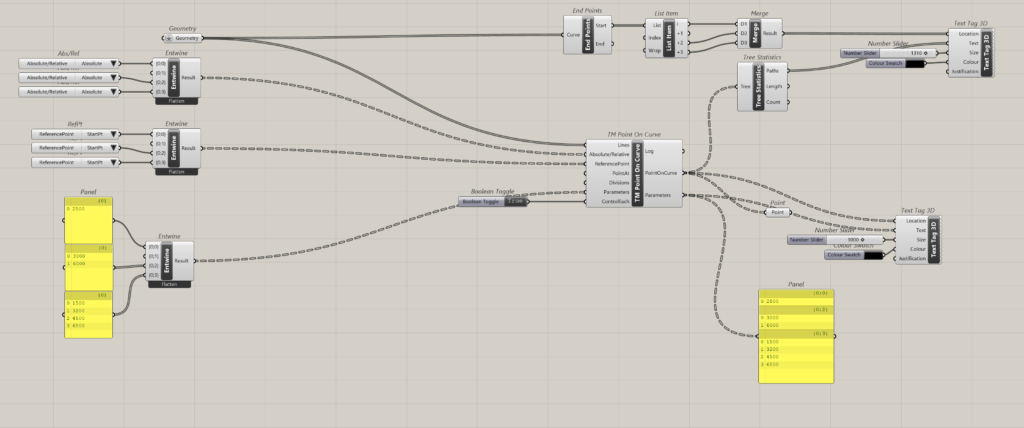
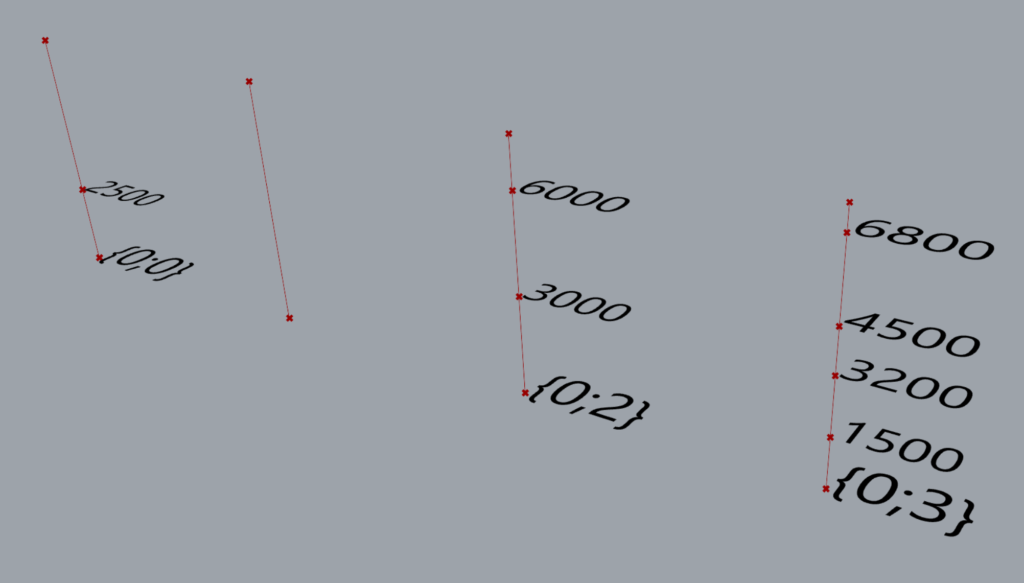
‘Control Each’ as True
Notice that as branch {0;1} is empty, hence the second column does not have any points generated on it.
Using ‘Absolute’ distances
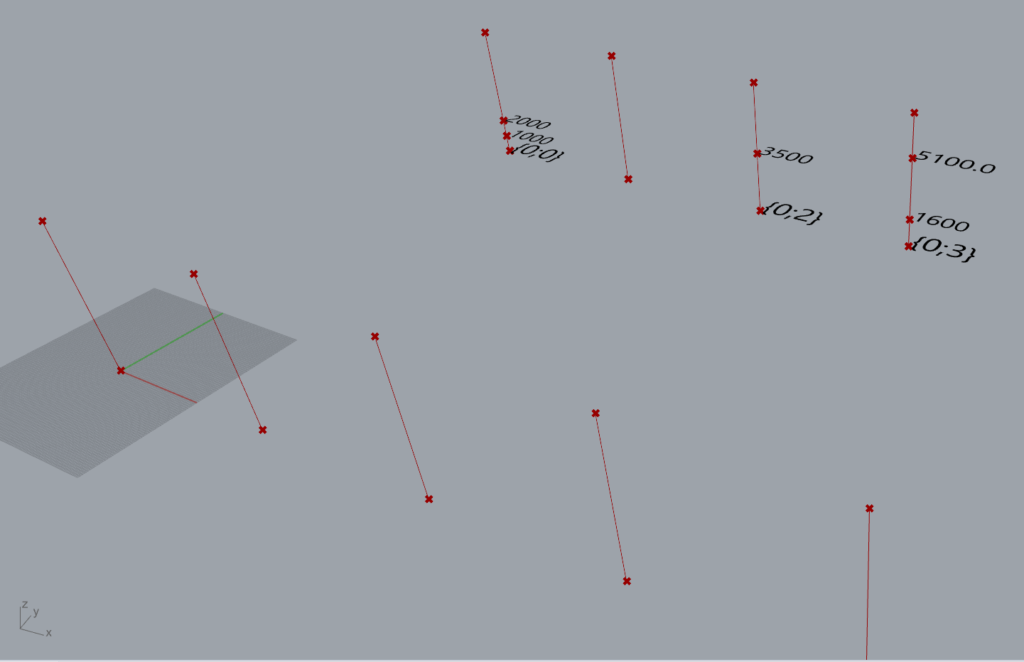
Using ‘Relative’ distances
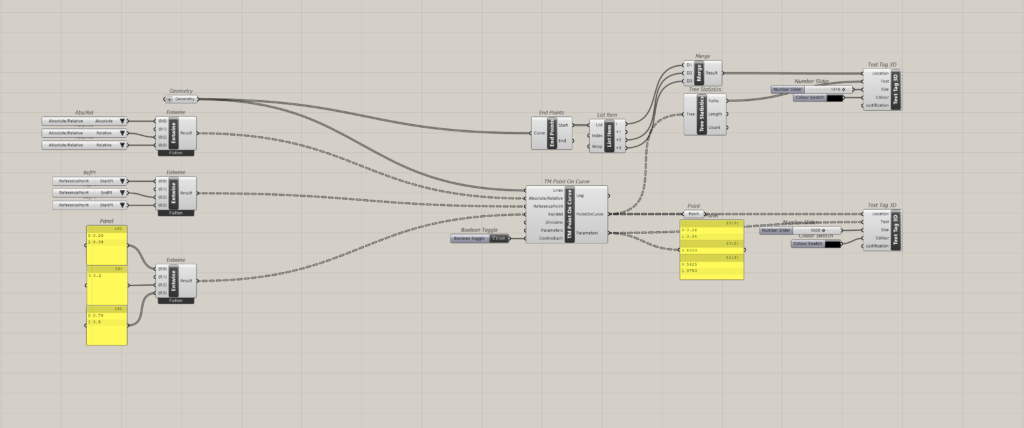
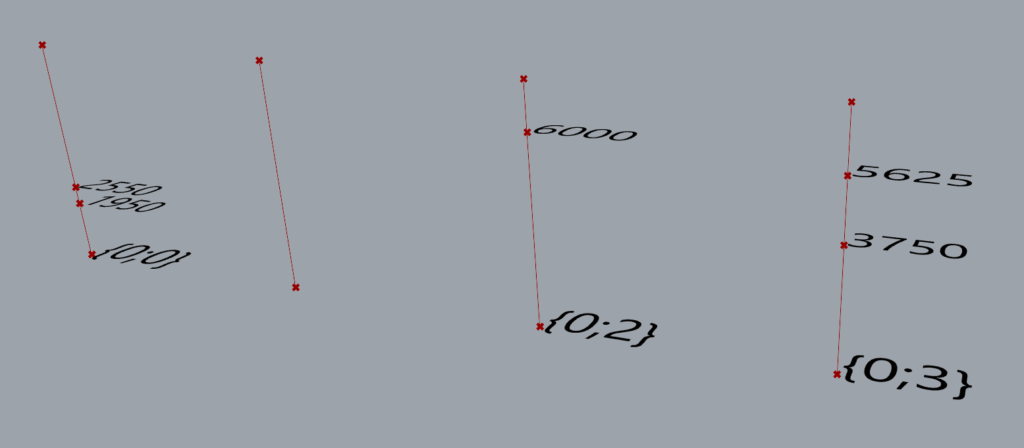
Points on Line 1 (0;0) where reference point is start point:
- 0.26*7500 = 1950 mm
- 0.34*7500 = 2550 mm
Points on line 3 (0;2) where reference point is the end point.
- 7500-0.2*7500 = 7500-1500 = 6000 mm
Points on line 4 where reference point is the start point.
- 0.75*7500 = 5625 mm
- 0.5*7500 = 3750 mm
Using ‘Divisions’
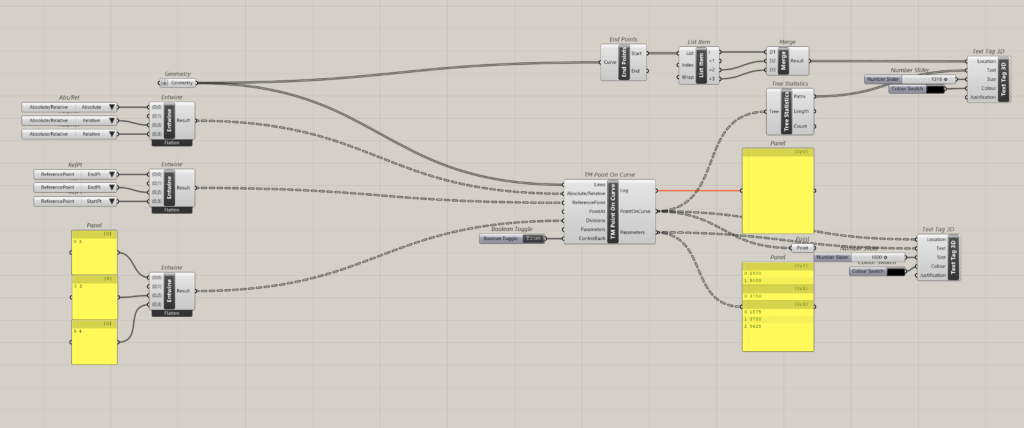
Using ‘Parameters’
Using All inputs together*
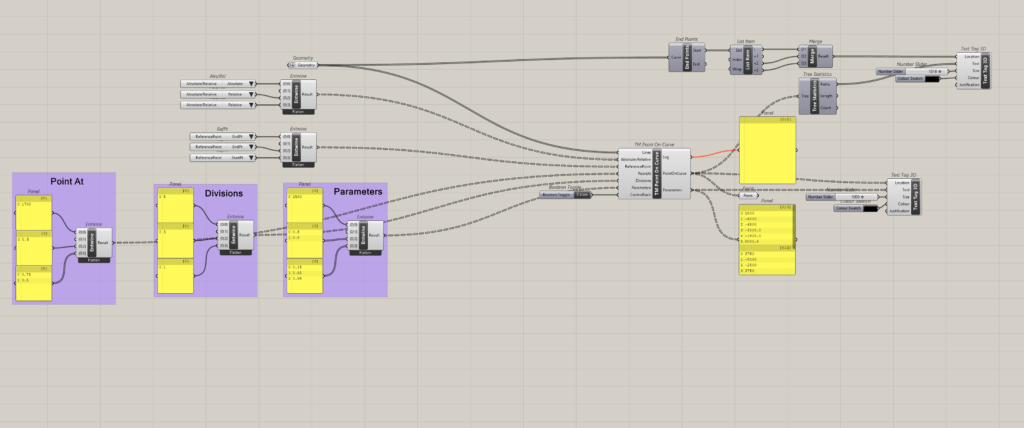
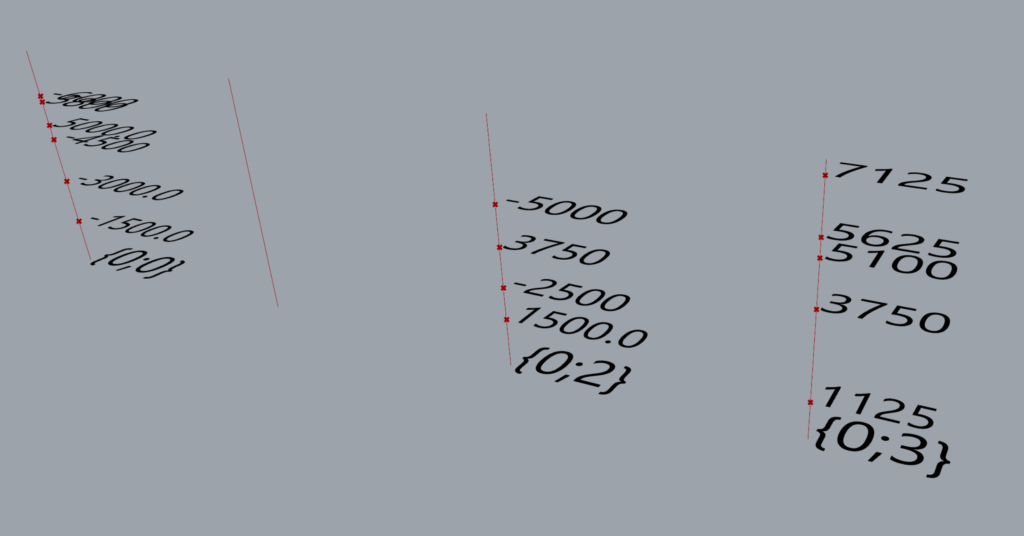
A bug was noticed when using all the inputs together with ‘Control Each’ as true, this has been rectified. Please get in touch with us, if you are still facing this issue.
Multiple Input Types
The component can also handle multiple inputs of different types as shown below.
Both absolute and relative distance types along with different reference points can be used for creating points on a single curve.